Showing posts with label axapta. Show all posts

Monday, January 14, 2013

Data Migration Framework Overview & Shortcomings

When I attended the AX Technical Conference in Seattle this last October, I was mildly impressed with some of the new features coming into the AX circle.  One of the tools I was impressed with was the Data Migration Framework (DMF), which was, and still is, in its 'beta' phase.  Now, I've only just recently been exposed to AX implementations in August this year when I started this job as a technical consultant for a Microsoft Gold Partner, so my knowledge of what is required for data migrations is still quite limited at this point.  In fact, the partner I work for typically has went through another partner to handle data migrations.  However, in attempt to further grow our firm, my boss has asked me to undertake the task of researching data migration and the tools that are available to us.  I did a little research, and like other AX-related Google searches, I found very little.  However, since I had been to the Technical Conference, I knew about DMF and some of the theory behind it.  From my understanding, if you are moving from another version of AX to a newer version of AX, the 'Data Import' is what should be used.  However, if you are moving from a non-AX system to AX, the DMF is the recommended solution (minus the fact that it is still in Beta 2.0 AND Microsoft doesn't provide support for it).  However, after playing with the DMF, I've found it to be very buggy and wouldn't recommend it just yet.  Although, like anything else Microsoft has released that's new, it's really great in theory, there are just too many things, that I imagine will be fixed in further iterations, that are just not quite there yet.  I recommend using AIF instead, I will be providing a similar analysis of AIF in the near future, follow me on Twitter for that update and other AX related tweets.  In the meantime, I will give you a general overview of the process I used to use the tool and what I've found along the way.

Installation


The first step is the installation of the tool.  There is an article that helps with this.  It's not an intuitive install.  In addition to executing the DmfSetup.exe, which MUST be 'Run as Administrator', you also have to install an .axmodel file (which is extracted from the setup) using ax-util via PowerShell, which the setup neither informs you of nor just does for you, that would just make too much sense.  The article I mentioned above walks you through it.  Once it is fully installed, you have to wait 8+ hours for the AOT to do a full compile and also have to kick off a full CIL compile.  Having completed that and waiting like 2 work days, the 'Data migration framework' shows up as a module in the navigation pane of AX.

Setup


The next step is setup, there isn't too much to it.  The first thing you must do is set up a shared directory where your source files will reside.  This is set up in 'Data migration framework parameters' (pictured below).  You must click the Validate button to continue to use DMF.  At first I was getting an error: "Unable to load file. AOS user does not have access to shared folder."  This was resolved by adding permissions to the shared directory I was selecting.  To see what user should be granted access, you will need to look at the AOS service and figure out what user it is executing under.  When the proper permissions were added, the shared directory then would validate.  I didn't even need to restart the AOS, that's always a bonus.


Another part of the setup was setting up 'Source data formats'.  This is where you specify what your input file format will be.  For instance, I am primarily working with tab-delimited files, so as pictured below, you can see where I specified that.  Other options of input data include fixed width data files and also a direct database connection through ODBC.  There is another option called AX which I am unsure about at this point so I won't further pretend like I know what that does.  But, we can make a good guess as to how ODBC works, but I won't discuss this either as in my case, I don't have an environment that has direct access to the source database, so this option will not work.  In the meantime, I'm sticking with using delimited flat files.


Introduction


Now that we are set to begin, I will start with the high level overview of the theory behind how the data progresses through DMF.  You have the "Source", the "Stage", and the "Target".  The Source is in my case the flat file I will be using.  The source file's data will migrate to one flat temporary staging table within AX.  From the staging table, the data will migrate to a target.  That target is in most, if not all, cases are multiple tables that are related to each other.

Because DMF comes shipped with many pre-defined entities (table mappings), 'Target entities' (pictured below) will be the easiest thing to look at right away; this is the relationship between Stage and Target.


This is a listing of all the mappings that come shipped with DMF.  You can also define your own custom entities here if you have a custom data that must be imported into AX, but I won't go over that.  The interesting thing to note is the AOT objects referenced here.  The Staging table is a table in AX, the Entity class is a class within AX, and the Target entity is a query object within AX.  So, if we click on the 'Entity structure', we will see the same structure defined as the query object mentioned before.


This is the magic behind how data will get from one flat staging table to multiple target tables, but something is missing yet.  We need to map fields from the staging table to the target fields.  Luckily, the target entities that come shipped with DMF already have these defined.  Click on 'Modify target mapping'.


This looks chaotic but it has to be.  It is a complex table relation.  The lucky part is that this is defined already.  Truthfully, the hard part will be getting the data into the staging table.

One thing to note here that I won't elaborate too much is the 3 boxes in the middle.  These are 3 methods located in the Entity class I referred to earlier.  These are created when there are complex data transformations that are needed before reaching the target tables.  For instance, you see the GenerateDefaultDimension method; this is because AX 2012 handles financial dimensions using a very different table structure than before.

Looking at this, you might be confused as to why the target shows up as one table and not multiple as I mentioned before.  The simple explanation is that this is built off a query object.  Imagine that you execute this query against the database, you will get one result set back; that is what this is.  AX will manage this similar to how the rest of AX handles table buffers just like in forms and form data sources, it might look like one grid of data, but it may come from multiple sources, the same applies here except that the data is flowing in the opposite direction.  Notice how ItemId in the Staging table is mapped to multiple Target fields; this is because ItemId exists as fields in multiple tables of the target.

That pretty much wraps up the introduction, everything as it is shipped with.  Everything other than that are things we have to custom-define and execute manually.  This involves how the data gets from the Source to the Staging table.

Source-to-Stage


Now we are ready to start migrating data from the Source to the Staging table.  First, we will need to create a 'Processing group'.  This is basically just a way to group all the types of data you will be processing together.  For instance, we will be trying to import data relating to items, so we will create a group for that.


Notice the above example, the Entities button is the only option available to us (never mind the 'Export to' option).  If we click on Entities, it brings up another form.  This is basically where we set up everything source file related.


If we add a record here, we need to specify an Entity, a data format, and the path to the sample file.  I selected Items as the Entity, as we are importing items.  I also chose Tab, as we set up earlier, as my data format as my flat file is tab-delimited.  This is the only setup needed as far as the source file is concerned.  The next part is to define the table mappings between the Source and the Staging table.

First thing that must be done is the 'Generate source mapping' option at the top.  This sets up your Source, giving it the ability to be mapped.  Careful in pressing this later on, this will reset all your mappings to the default.  Most often, your column names in the source file won't match AX naming conventions, so nothing may map at all by default.  In fact you may get a warning: "There are field(s) which are not mapped to Entity field(s)".  This is okay and expected.

Now we have the ability to change the default mappings by clicking 'Modify source mapping'.  As pictured below, we can see that no fields were mapped by default.


So, from here, I can click and drag from any black dot by a column name of the Source and drag it to a black dot of another column in the Staging table.  I added only a few just to keep this example simple.


One thing to note here, there is an option at the top to see a 'Mapping details' view.  Here you will see exactly what you can see in the visualization, only this is in grid format.


If you select one of the source fields, you can click the Conversion button.  Here, you can define conversions or transformations that will be expected from the source file.  In my example, I have a column called 'type' which is mapped to the ItemType field.  AX will be expecting either 'Item' or 'Service' as valid values.  However, my flat file only has 'I' and 'S' as values.  The ItemType within AX will not know how to handle these.  So, we can add a conversion to say when the value is 'S', change it to 'Service'.  When it is 'I', change it to 'Item'.  This is a very neat feature of DMF.

Also, don't forget to hit Save before you exit, a message will warn you if you didn't.  Now that the mappings have been defined, we can hit 'Validate' and it will make sure that all the required fields are mapped.  Hopefully by this point we should be set, but before we move on we should preview what it will look like when it goes into the Staging table.  Click 'Preview source file', a grid should appear in the Preview pane, pictured below.


At this point, it looks great!  We are now ready to load data into the Staging table.  We can close out of the Entities form and a new option appears in our Processing group, 'Get staging data'.


Go ahead and click it.  We are asked to supply a Job ID, the default value will do.  The Job ID is used to track what data was processed successfully and also what failed with errors.  We could run more jobs later but still be able to tell what errors came out of the initial run.


This data execution form appears and lets us know what is expected to be run and what hasn't run yet.  We can click on Run and a batch dialog appears.  At this point, we're not going to batch process this, so we can just leave the defaults and run this right away.  An infolog message shows: "'12' 'Items' record(s) inserted in staging" for however many records were inserted.  If there were any errors, it would let you know.  For more specifics on the errors, you can open up the Execution history form to see the log.

Now, the data should all be loaded into the Staging table.  We can verify this easily by looking at the DMF table in the AOT.

Stage-to-Target


Back at the 'Processing groups' form, we now see all options available to us.  The option 'Copy data to target' is the one we are interested in next.  We click on that, we are prompted for the Job ID we were using earlier.  If we have run several jobs and loaded different pieces of data, we can easily segregate the migration by choosing only specific jobs.  There is also the option to only run records that previously had errors or records by user selection.  Click OK to continue.

Another execution form appears that is similar to the Staging table execution.  If we click Run, it will start processing records.

Unfortunately, this is where my tutorial ends.  I get a stack trace error and cannot seem to continue.  If I someday figure out why this happens or Microsoft fixes this bug, I will update this post.  But this should help get someone started if they were interested in looking to the future and setting up DMF and playing around a bit.

Shortcomings


In reviewing this tool, I found a couple things that I would call shortcomings of this software.  These are definite issues that Microsoft should definitely have a look at.

1) Stack Trace Error:
In the last step, I mentioned a stack trace error I've been getting.  I go to Run the Copy data to target and my debugger pops up with the following error:
Error executing code: The field with ID '0' does not exist in table 'Common'.
Stack trace
(C)\Classes\DMFEntityWriter\write - line 534
(C)\Classes\DMFEntityWriter\run - line 83
(C)\Classes\DMFEntityWriter\main - line 24
(C)\Classes\xMenuFunction\run
(C)\Classes\MenuFunction\run - line 87
(C)\Forms\DMFWriteData\Designs\DesignList\DMFEntityWriterBatch\Methods\Clicked - line 16
Sounds like a very generic error.  But considering the Stage-to-Target stuff is out of the box functionality, this should never happen in any case.

2) Cannot Map One-to-Many
When setting up the Source file mapping, it appears like you are able to map one Source field to multiple Stage fields.  However, when you attempt to run the process to copy the data into the Staging table, an error appears:
Error updating flat file source properties-Exception from HRESULT: 0xC0207015
After Google'ing that exception code, all signs were pointing to multiple columns having the same name.  Of course, I'm positive I didn't have two columns named the same.  I double-checked myself and there wasn't, but I realized it was because I had a one-to-many mapping on the Source.  After I removed the mapping, I didn't get the error.  After fighting with DMF, I decided that it would just be easier to create duplicate columns in the source flat file itself, with a different column name of course, and use the duplicated column for the mapping instead.

3) No Defaulted Values
Although we can specify Conversions per each field in the mappings, there is no option to have a default value.  Most often, I'd assume the data you are trying to import will not match what AX is expecting.  There should be an option to have a default value when none of the Conversions are matched.  This would allow for a much cleaner and smoother data migration.

4) Source Data Types Not Recognized
When we initially generate the source mapping of a flat file, all columns show up as String data types, regardless if all the values in that column are numeric or dates.  So, when you try to map these String fields to Date or Real or Int fields in the Staging table, an error pops up letting you know that the types don't match.  This is a big issue!

The only workaround I can think of is to somehow load your flat file into a database and then use an ODBC connection to read your source data, but that seems like a lot of work just to avoid something that should already be working.

5) Mandatory Fields Not Complete
When DMF is shipped, it comes with all the DMF* Staging tables.  These tables have certain fields marked as Mandatory in the AOT properties.  However, some of the Entities and the tables relating to it actually require more fields than what is specified in these DMF* Staging tables.  This is something the user must keep in mind, even if your Source validates and successfully gets to the Staging table, it may not successfully get to the Target tables because it might be missing some required fields that it did not inform you of earlier.

Monday, November 19, 2012

Financial Dimension Lookup for AX 2012

If you just took the dive into AX 2012, you may have noticed quite a change in how financial dimensions are stored.  I'm here to bring light to how to access the dimension values with the new structure so that you may use them as you did in the 4.0/2009 system.

As a review: In AX 4.0 and 2009, a business was limited to the number of financial dimensions they wanted, I believe the default amount of dimensions was 3, but additional dimensions could be purchased and was regulated by the license file provided by Microsoft when AX is purchased.  The various tables that did utilize these financial dimensions simply had a column for each dimension, namely Dimension[1], Dimension[2], Dimension[3], etc... (in SQL: Dimension, Dimension2_, Dimension3_, etc...) depending on how many dimensions your business purchased, of course.  Each one of these fields stored the actual value of the dimension right there in that table.  If you wanted to reference the name or description of that Dimension, it was easy.  AX had a Dimensions table where you could just do a Dimensions::find() and provide the dimension value stored in the above table and your DimensionCode enum type (to specify which dimension you are supplying).  Presto, upon returning the Dimensions record, you reference the Description field and you have the dimension description/name.

AX 2012 handles this quite differently...

Instead of there being a limit on the number of financial dimensions, the team at Microsoft found a way to lift that restriction and now allow for infinite dimensions.  Yahoo!  But it doesn't come for free (don't think monetarily).  The price you pay is the complexity of it.  Instead of storing each of the dimensions on a given table, their solution is to store a reference (to the related table's RecId) of a record in a centralized dimension table in a column called DefaultDimension.  This is the value that will eventually get you to your dimensions.

If you don't care about a technical data structure oversight and just want a simple solution, you can skip down to the solution below, otherwise continue reading (this is starting to feel like a Goosebumps "Give Yourself" book).

The centralized dimesion table I was referring to is DimensionAttributeValueSetItem.  The DimensionAttributeValueSet field in this table is going to be the field that DefaultDimension relates to.  For each financial dimension that is specified for a record, there will be that many records in the DimensionAttributeValueSetItem table.  There is a field called DisplayValue in this table, this is the value of the dimension!  Yahoo!  Don't get too excited yet, there are no values in this table that will tell us which financial dimensions are which.  We will need to join to DimensionAttributeValue and again to DimensionAttribute first.  From here it is tricky if you're looking to find the human-readable description in addition, depending on what kind of dimension it is, it will link to a different table.  I suggest only linking to the tables you need to.  If you have custom dimensions, you will outer join to DimensionAttributeDirCategory and DimensionFinancialTag (as shown below).  Any other types of dimensions link to various Views with a "DimAttribute" prefix but also must be linked to the current company that is selected.  I've included an example of linking to Customer and Project dimensions.  Below you will find a SQL query which will define the join criteria.
SELECT davsi.DisplayValue, da.Name, dft.Description, dact.Name, dapt.Name
FROM DimensionAttributeValueSetItem davsi
JOIN DimensionAttributeValue dav
    ON dav.RecId = davsi.DimensionAttributeValue
JOIN DimensionAttribute da
    ON da.RecId = dav.DimensionAttribute
--Custom dimensions
LEFT JOIN DimensionAttributeDirCategory dadc
    ON dadc.DimensionAttribute = da.RecId
LEFT JOIN DimensionFinancialTag dft
    ON dft.FinancialTagCategory = dadc.DirCategory
AND dft.RecId = dav.EntityInstance
--Customer dimension
LEFT JOIN DimAttributeCustTable dact
    ON dact.Value = davsi.DisplayValue
    AND dact.RecId = dav.EntityInstance
    AND dact.DataAreaId = 'dat'
--Project dimension
LEFT JOIN DimAttributeProjTable dapt
    ON dapt.Value = davsi.DisplayValue
    AND dapt.RecId = dav.EntityInstance
    AND dapt.DataAreaId = 'dat'
WHERE davsi.DimensionAttributeValueSet = '5637144584'
--where '5637144584' is the DefaultDimension reference value
The interesting part to note about the above query is the da.Name field.  This is the AX 2012 equivalent to the DimensionCode Enum, only AX 2012 doesn't use Enums for dimensions (because Enums cannot (and shouldn't) be created dynamically by your end users, but financial dimensions now can be and are meant to be defined by your end users).  So, when coding, you will either need to hard code these dimension names, or create your own Enum or Macro that you must manage separately.  I don't like it either but it is what it is.

SOLUTION

I have developed a couple of helper methods that simply the retrieval of dimension data.  These can be included in a helper class and referenced to as static methods are normally, but I recommend including these in your Global class, then you can just call the method directly.  I have 2 methods: dimValue() and dimDesc(), they return the value and description, respectively.  Code and usage is below:
//Usage for dimValue() and dimDesc()
static void JobDimensionUsage(Args _args)
{
    SalesLine       sl;

    DimensionValue  value;
    Description     desc;
    ;
    select firstonly sl;

    value = dimValue(sl.DefaultDimension, 'Department');
    desc = dimDesc(sl.DefaultDimension, 'Department');

    info(strfmt("%1: %2", value, desc));
}
static DimensionValue dimValue(RefRecId _defaultDimension, Name _name)
{
    DimensionAttributeValueSetItemView  davsi;
    DimensionAttribute                  da;
    ;
    select DisplayValue from davsi
    where davsi.DimensionAttributeValueSet == _defaultDimension
    join RecId from da
    where da.RecId == davsi.DimensionAttribute
        && da.Name == _name;
 
    return davsi.DisplayValue;
}

static Description dimDesc(RefRecId _defaultDimension, Name _name)
{
    DimensionAttributeValueSetItemView  davsi;
    DimensionAttribute                  da;
    DimensionFinancialTag               dft;
    DimensionAttributeDirCategory       dadc;
    DimAttributeCustTable               dact;
    DimAttributeProjTable               dapt;
    ;
    select DimensionAttributeValueSet from davsi
    where davsi.DimensionAttributeValueSet == _defaultDimension
    join RecId from da
    where da.RecId == davsi.DimensionAttribute
        && da.Name == _name
    outer join Name from dadc
    where dadc.DimensionAttribute == da.RecId;
    outer join Description from dft
    where dft.RecId == dav.EntityInstance
        && dft.FinancialTagCategory == dadc.DirCategory
    outer join Name from dact
    where dact.RecId == dav.EntityInstance
        && dact.Value == davsi.DisplayValue
    outer join Name from dapt
    where dapt.RecId == dav.EntityInstance
        && dapt.Value == davsi.DisplayValue;
 
    return (dft.Description ? dft.Description : (dact.Name ? dact.Name : (dapt.Name ? dapt.Name : "")));
}

Friday, March 9, 2012

Increase Performance by Removing Unused Overridden Methods?

It's been in the back of my mind for quite awhile now to figure out how the kernel of Dynamics AX actually handles it's delete_from and update_recordset logic. Sometimes, the kernel decides to emit exactly one DELETE FROM query to the database versus one 'DELETE FROM table WHERE RecId = @P1' per record in the table buffer.

I found a case on PriceDiscTable (this situation is not limited to just this object), a noticeably large table especially for our business, where I noticed multiple DELETE FROM statements getting emitted to the database, taking a very long time to complete a daily task our business runs. I looked at the table and noticed that the delete() method on the table was indeed overridden, but upon investigating the details of the method, only super() was getting called inside (along with some commented out code that we used in the past and plan to use in the future, but that's beside the point).

I removed the method as there really is no functional difference in just leaving it hidden (even though I know the reason why we wanted the commented code there, we didn't want to lose it). Lo and behold, our daily task now emits one single DELETE FROM with the criteria we specified in the WHERE clause.

One would think that the kernel would notice and see that the compiled version of the overridden delete() method with just the super() call is identical to the default "hidden" delete() method and handle them the same. But, we've been duped again. We'll have to store the commented out code we had in there somewhere else even though it would've been much more convenient to just keep in where it was.
As a side note, having at least one Delete Action on your table object will also force the kernel to emit multiple DELETE FROM queries. Removing them will tell the kernel that it doesn't have to perform a row-by-row operation and can emit the DELETE FROM in one statement.

And as (Joris de Gruyter of Dynamics AX Musings) has graciously pointed out in a comment, having database logging or alerts enabled on your table and/or having any MEMO fields on that table will also force a multiple DELETE FROM, who knew?

Friday, February 17, 2012

Missing Enums in SRSAnalysisEnums

Forenote: If you are using 2012, read this post.  There is a more robust way to access enums in AX 2012.

If your business operates like any would and has the need to report on data from custom functionality then you might find this post useful.  In creating custom functionality we often have the need to create new custom Enums and store the values in a custom table.  Doing so works just fine inside the Dynamics circle.  However, if you use a separate reporting engine outside of Dynamics, like SSRS, to render your reports, you will find that your users will not understand what a ShipStatus of 2 is, and let's be serious, your proposed solution to hard code your enum labels in your report is a poor strategy.

Microsoft was nice enough to create some tables to store enum values and labels for some of these enums.  These are located in two tables, namely, SRSAnalysisEnums and SRSModelEntityCache.  But, like I mentioned earlier, there are only SOME enums in these tables.  For a long time it was mysterious to me why it was this way, but after some digging in and a few "Ah ha!" moments later I figured it out.  It also introduced me to another unknown area of Dynamics.

Today, we're going to learn about Perspectives.  It's an object in the AOT under Data Dictionary.  Perspecitves in Dynamics are a poor attempt to mimic the functionality of a database cube.  It's not as flexible as a real cube and not very customizable.  If you expand the Perspectives node, you'll see a Perspective object for each Module.  Each of these perspectives has a list of tables.  Any enums in these tables listed under a perspective are the enums that show up in the SRS tables.  To get your new enums to show up you just need to have your table included in one of these perspectives or create your own, but try to put your table in the most relevant module, pertaining to the data that's stored in the table.

Note: If your table is already in these perspectives, read ahead.

Now, putting the table in the perspective alone won't put your enums in the table.  You also have to update the model so the SRS tables get populated correctly.  The way to do this is Tools->Reporting tools->Update models.  You can choose to update all languages or just one, as you feel is necessary for your business.  Running this will take awhile, but when it is finished, you will now see your new enums show up in the SRS tables.  Here's a script that will get your enum labels from a value:
SELECT ae.EnumItemName
FROM SRSModelEntityCache ec
JOIN SRSAnalysisEnums ae
    ON ae.EnumId = ec.EntityId
WHERE ec.PhysicalName = 'BaseEnum_ShipStatus'
    AND ae.EnumItemValue = 2

Thursday, February 9, 2012

Kernel Function Madness: any2str()

I'm a developer.  I'd treat this function as any would.  Here we have a function called any2str and takes in an anytype object and returns a string representation.  That's great because I have a dynamically changing anytype object that could be an integer one time and a date the next.  I also need to get a string representation of each type to I can put the values into the same column of a table to report on later.  So like any developer would do you code up your logic and write:
table.stringField = any2str(dynamicObject);
Sweet.  Everything compiles, let's continue writing code.
...
***Days pass***
...
Ok, time to run a test.  What?  Run-time error?  Method is expecting object of type string?  Wait, what line is it talking about?

For a moment I refused to believe that someone wouldn't have been so stupid to code up this method to expect only strings to be passed in.  And even after I realized that was the truth, I still couldn't believe it.  Yes, the method does in fact take in an anytype.  However, the method only works if that anytype is of type string.  So, instead of using the intuitive knowledge us developers have been taught to use, we have to now second guess every kernel function we call into no matter how we much "know" (think) how a method should work.  We've been duped, we've been given a useless str2str() method.

The workaround is below.  Use this as a local function (or as a method in the Global class to make a global method) inside the methods you often would use any2str(), that is, before understanding what the method really does.
str theRealAny2str(anytype _val)
{
    switch (typeof(_val))
    {
        case Types::Date:
            return date2str(any2date(_val), 213, 2, -1, 2, -1, 2);
        case Types::Enum:
            return enum2str(any2enum(_val));
        case Types::Guid:
            return guid2str(any2guid(_val));
        case Types::Int64:
            return int642str(any2int64(_val));
        case Types::Integer:
            return int2str(any2int(_val));
        case Types::Real:
            return num2str(any2real(_val), 1, 2, 1, 0);
    }
    return any2str(_val);
}

Monday, November 14, 2011

Ignore IDs During Code Compare

If any of you have done a code compare, comparing one XPO to the matching objects within the AOT, you may have noticed that in most cases the ID values of various nodes/sub-nodes don't match.  This is only partially correct, the node itself may match identically except the ID property, which doesn't cause a change in functionality anyways.  This annoyingly forces you to click through each item to verify that each node IS in fact identical.  I have developed a solution, an option to ignore these ID properties as a checkbox in the Advanced tab of the Compare form.

Let's take the Address table for example.  If we have an XPO that includes the Address table and we attempt to compare it with the object in the AOT, we will see "differences" like this:


As we can see, it shows a difference in every single field and index on the table.  What happens is when an object is exported to an XPO, it does not retain the ID values as they really don't change how it functions.  When importing from an XPO and comparing, the IDs in the XPO default to 0, thus showing the difference.

Normally this isn't a bad thing, but it gives you the feeling that there are truly differences that change the functionality.  It becomes a pain to filter through each node and double check each to see the real differences.  More often than one would think, a real difference slips by unnoticed because of the mass amount of false positives in changes, thus promoting code to Production without truly meaning to.

I proposed a solution to add an option to the SysCompareForm to ignore ID properties (as shown below).


By default, I have the checkbox checked to ignore the IDs, you may choose to change that as needed per your business's requirements.  The screenshot below shows how tidy it looks after ignoring the ID properties.


DOWNLOAD XPO HERE and Enjoy!

Bug Reported (2/27/2012): Ineffective towards EDTs and Enums, still shows the comparison.

Friday, November 4, 2011

Dynamics AX Pain Points

I've been developing in DAX for about 3 years and over those years I have generated a big written list of things that I wish would be better.  Granted, I am working in Dynamics AX 4.0, so there may have been things that have been fixed in future versions, but nonetheless I compiled a list.  Some of these are minor, some of them are big.  Some of them have workarounds, and some do not.

You ask: Why are you blogging about it?  Well, I did mention some of these written notes are years old; to be honest, it's so old the ink is starting to fade and I wanted to make an electronic copy and elaborate on them and continue to do so when I run across them.  I also hope to through time provide workarounds for these pain points.

I apologize, this is probably going to be a post that I will update from time to time, but if you have any questions, possibly about a topic that I mention there is a workaround but I haven't gotten around to explaining it, feel free to comment below and I'll do my best to either quick blog the workaround, or respond to your comment.

DAX Kernel 4.0.2503.854
DAX Application 4.0.2503.57

Issues (with Workarounds)
  • When trying to compare code from an XPO to an object in the AOT, through the Import form, right-clicking the object in the Details frame causes a Synchronize on that object, which possibly can cause a table to rebuild it's indexes
    • Workaround - It's a hack but it could save your job
  • Code compare has no option to ignore checking differences in Object IDs
    • Solution - Custom checkbox within Compare form
  • Containers are stored in the database as BLOBs, impossible to reference from outside DAX
    • Solution - I have developed two SQL user-defined functions that allow you to conpeek() outside of DAX
  • Inability to filter enums within a ComboBox control (workaround is possible, blog post soon)
  • Some enums aren't available in the SRSModelEntityCache and SRSAnalysisEnums
    • Solution - Must add your wanted Enums to a Perspective and update the model
  • Unable to update/insert data from outside DAX (Workaround possible, blog post soon)
  • Unable to reorder Data Sources within a Form after you already created them in VSS.  They only appear to reorder in the AOT but still function during runtime the same as the original order. Workaround soon - It's not pretty
  • When using VSS and creating new Jobs, the original/default name of the Job still retains as the Name property even after you change it in the code.  Workaround, this one isn't pretty either.
Bugs (Issues with no workaround found)
  • If you have multiple AOS instances for one database, sometimes compiling the code does NOT push the change to all the AOS's (probably a caching issue)
  • The MorphX editor closes and the AOT node collapses when you Check Out that object from VSS
  • The Compile window does not clear when recompiling
  • Soft breakpoints don't always work, most often in forms, because they are client ran
  • Code Profiler affects the outcome sometimes, and misses some calls, hardly useful but good in theory
  • Dragging and dropping nodes in the AOT doesn't consistently allow you to re-order nodes, you have to use Alt+Up/Down instead (Explanation)
  • Can't drag and drop objects from a project to another project without having the source project checked out, should just copy the reference in the new without trying to pull it out of the source project
  • If I have two windows both are not maximized, I maximize one, then I close it, the second window magically assumes it should be maximized as well.  And sometimes when clicking back and forth from window to window, sometimes it automatically maximizes. Why? (Seems to happen a lot with the "Find" form)
  • Some tables, for example (TaxBook/SalesPurchCycle/PBARulePBAId2ConsId/COSPlanTable), when you change the primary key or clustered index, the change is not reflected in the database
  • When importing two objects that having elements that reference each other, there is an error saying that an object doesn't exist (forces the user to import multiple times to finally get it all)
  • If a Field Group changes in a table (changing order or adding new fields in a specific order), any groups within a form (or report I presume) will not refresh and put the fields in that correct order even after a compile
  • If you create a field on a table, name it something, and later realize that it is the wrong type and delete and readd that field, same name but with a different type, fieldnum() will always return the original fieldId, not the new one.
Suggestions & Gripes
  • RecordSortedList should have the option to sort in descending order
  • When using multiples instances of AOS's, the RecId's issued may not always be in order of when it is inserted (The number sequencing behind RecId's has the option to batch request a set of RecId's at a time but may not use them in order).  Why not just use an auto-increment identity column and let the database handle what it does best?
  • date2str is a ridiculous function.  There should be Enums to go along with the parameters that date2str takes in.  Having to hard-code 213 for US date standards is not cool.
  • EDTs should have a property for data length, display length doesn't enforce what goes in the database
  • DAX is shipped with numerous instances where there are relations on varchar type fields, I was always taught that is a big no-no, a big performance degradation
  • DAX doesn't have a good event model
  • There's no good built-in way to listen to keystrokes, the workaround would be to monitor the task() method on forms, but the int values of the keystrokes that are hit are unknown.
  • No way to control and specify Shortcut keys (for buttons in forms)
  • Lack of a good API reference, MSDN is hardly sufficient (I want to know the order in which the kernel calls certain methods in Forms/Data Sources/RunBaseBatch/Reports/etc.)
  • Date and time are stored separately, why not a DateTime type, databases have been able to handle this for years
  • DataAreaId is always the first field in every index created, it makes the histograms of the statistics of the database not very useful when most companies have only one Company/DataArea
  • Projects really only consist of pointers to the real objects in the AOT, not cloned copies of the object
  • Can't check in/out a project from the Project window when you have it open
  • When compiling code, if you are calling into a method that accepts a string EDT as a parameter, it should at least show a warning when the size of that parameter being passed in could be larger than what the method is expecting to accept, otherwise truncation is possible
  • Why do we have to define all variables first and why the extra semi-colon?
  • Inability to overload methods
  • VSS is the only option for source control, in 4.0 (allows for no branching or merging/does not track objects that were deleted or renamed/no option for TFS/checkout time seems to grow significantly with the number of versions)
  • The database is not relational, each table is it's own separate entity
  • SysLastValue and it's caching mechanism, why does this need to be so complicated?
  • The layer architecture is a good idea, but when MS releases patches, we can't jam code into objects that exist in higher layers
  • Why do edit/display methods have to call the database continuously?  Debugging these are horrible.
  • No relations on Views?
  • Users are not able to create enum values, this forces most developers to make master tables so the user can manage it.  So why have enums at this point?
  • Because of SOX and PCI requirements, I wish there was a way to have read-only access to code vs no access to code (most Production environments can't allow developers access to change code per PCI/SOX)
  • Why isn't there a way to test security as another user (alias their security settings similar to SharePoint)
  • DAX doesn't have a HAVING clause, forced to create a temp table to store the data and filter the data in a WHERE
  • DAX has no concept of NULL, makes it nearly impossible to LEFT OUTER JOIN
  • Cannot seem to get more than one LEFT OUTER JOIN to work in one QueryRun object.
  • The order of DataSources within a form impacts the underlying queries, expectations can vary
  • Must have temporary tables as the innermost table vs being a table that is joining to another table? I understand why, but why can't DAX just create real temporary tables in the database so it can join to it any way we want?
  • Number sequencing is heavy on the database, why not have a separate table that stores the TableId, FieldId, and some sort pattern to display the identity column (ex. SalesId would be SO%)
  • Number Sequences are created by writing code? What? If we're so determined to bypass a standard that SQL databases have had for decades for identity columns (autoincrement); why not make it easier by having Number Sequences as an item in the AOT?  That way, you could have a field property to specify a Number Sequence object to use, and it could increment automatically?
  • Add a countdistinct(_field_) aggregate function to perform a COUNT(distinct _field_).  count() only includes a count of records, not unique records, not very useful.
  • any2str function converts an anytype object to a string ONLY if that anytype object is of type string....what? (Explanation)
  • Unable to drag objects from one project to another (copy) without having the source project checked out.
  • If new fields are added to a Field Group in a Table, any Form that uses it does add the new fields correctly, however not in the order in which the Field Group shows it, even if you compile it.
  • There is no way to compare your checked out (while working on a change) version of the code to the latest version.  This would be very handy, especially if you have multiple developers in the same environment and you want to see what the other developers have changed. (Fixed in 2012)

Wednesday, October 19, 2011

Tool to Analyze Queries from X++ Code

Sometimes when you're working in DAX you may not understand why data isn't displaying correctly or something isn't joining right. This then begs the question what SQL is being generated when you perform a task. DAX comes with a couple of tools to trace what is happening but let's be serious, those tools are far from perfect.

One tool is the SQL Trace option in the Options menu. This is a good and easy way to quickly trace simple SQL that executes, but it misses some important queries that run from deep in the kernel.

The other tool is the TraceParser. This tool requires a ton of initial setup and requires an Admin to run the tool. This is a big problem (aka. A big no-no) for anyone who works in an environment stacked with PCI and SOX compliance guidelines to follow, especially when trying to trace an issue in your Production environment. Plus when you do get it working and get proper sign-off from the executives of your business, there is a lot of work in analyzing the results, having to drill down into nested tree structures on EVERY line just to get to the query that ran. But it does do a good job matching up what query got ran from what line. In my opinion, it's a lot more work than necessary.

The caveat with both of these tools, it sometimes misses some queries that are executed, especially those that involve schema changes or other ALTER statements. Luckily, I've found an easy way to use a tool we are all familiar with, SQL Profiler. If you're not familiar, you should become well acquainted. As we know, SQL Profiler will monitor and report just about every event you can throw at a SQL server. Now, if you simply run a trace while running something in DAX and look at the resulting queries, you'll see the structure of the query, but there will be parameters (ie. @P1, @P2, etc.) in place of the real values that will be used in the query. This makes it very difficult to determine what the query actually returned (result set).

What is interesting, if you look at the RPC:Starting event just before the query in question, you will see the real values of those parameters in the last part of TextData column. Even then, looking at it, it still isn't easy to determine where those values go in the next query.

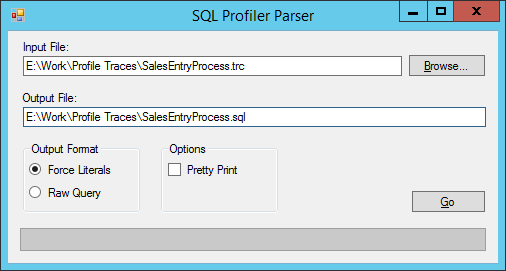
What I did is analyze a good amount of these profile trace (*.trc) files and wrote a program that parses a *.trc file and converts it to a text file that replaces all parameters with the real values so it is easier to determine what your result set REALLY is. The link is below:

SQL Trace File Parser

It isn't perfect but I did my best. It then uses a web service I found to format (indent/line break) the queries and writes them out to the text file (that also isn't perfect either, you might get really long one liners, sorry).

How to Use
  1. First, we need to open SQL Profiler. Easy enough.
  2. We'll need to create a Template in the File->Templates->'New Template...' menu.

    • Give your template a name, I named mine DAX_TRACE
    • Click on the Events Selection tab
    • SQL Profiler will trace everything that is thrown at it so we need to filter it to specific only trace events fired by DAX.  Make sure that both the checkboxes ('Show all events' and 'Show all columns') are checked and click on 'Column Filters...' and filter the two columns
      • Application Name = "Microsoft Dynamics AX" (no quotes)
      • Database Name = <The Database your DAX environment uses>

      You may choose additional filters as you see fit.
    • Now we will need to select events and columns we will be tracing
    • You may select any/all events/columns you wish but you need at least the following events:
      • RPC:Starting
      • SP:StmtCompleted
      • SQL:StmtCompleted
      And the following columns:
      • TextData
      • SPID
      • ObjectName
      Note: A quick way to save time when deselecting columns is to right-click the column header and choose 'Deselect Column'.
    • 'Save' the template
  3. Now we are set up and can trace with this same template anytime we wish.
  4. Let's begin tracing by clicking on the 'New Trace' button.  It'll ask you to connect to a SQL Server. Enter the SQL Server information and make sure it successfully makes a connection.
  5. A new window opens to provide you with options as to how you wish to trace the server.  You can give the trace a name, it doesn't matter if you leave it.  You should then select the template in which we just created in the 'Use the template' drop-down list.  Nothing additional is needed, we can worry about saving the trace file after it runs, it's not necessary to tell it where to save ahead of time.
  6. When you are ready and you have a DAX client up and ready to trace, click 'Run' and it will begin tracing.
  7. Perform the tasks you want in the DAX client.
  8. When desired, you may stop the trace by hitting the 'Stop' button.
  9. Save this as a Trace file by clicking File->'Save As'->'Trace File...' and find a place to store the file.
  10. Open SQL Trace File Parser (download from above) and browse for the file we just traced.
  11. By default, the text file will save in the same directory/filename as the trace file but with a *.sql extension instead.
  12. The Output Format is defaulted to 'Force Literals' which simulates what the query would look like if you use the forceliterals keyword in your query (replaces the parameters with real values).  'Raw Query' will just give you the original parameterized query.
  13. The Options show Pretty Print, which uses a 3rd party web service to format the SQL with proper indentation for easy readability.  If this service is unavailable and it fails, please uncheck it.
  14. Click Go and watch it churn away.
  15. Open the *.sql file and look at the beautiful SQL it found.
  16. As usual, if you spot any bugs please send message me and provide the *.trc file if possible.
I'm always open to comments and suggestions to improve this.  Let me know.

Change Log:
2014-12-10 - Feature - Changed the default output filename to a *.sql instead of *.txt
2014-12-10 - Feature - Added the option to use or not use a 3rd party web service to format the SQL

Monday, June 20, 2011

Accessing Dynamics AX Containers from SQL

If anyone has dealt with storing container objects in the database, you also know of how impossible it is to access it's contents from outside of DAX.  I spent a couple of days reverse engineering the binary format of containers and how it stores information.  From that, I have developed a couple of SQL functions that allow you to dig into these containers from wherever you need to (SSRS, Management Studio, etc.).

There are two functions:

  • CONPEEK(varbinary, int)
  • CONSIZE(image)

CONPEEK acts exactly as DAX handles it so it should be no mystery.  CONSIZE is used within the CONPEEK function to handle nested containers, it will just give you the size in bytes of the container (Not to be confused with conlen() in DAX).

Note: Sorry, you must CAST the return value of CONPEEK as a varbinary(8000) before calling back into CONPEEK when dealing with nested containers. I could not find a way around it.

Usage:
DECLARE @con AS varbinary(8000);
-- An example container with structure:
-- * 2 (int)
-- * (container)
--    * 17 (int)
--    * 'abc' (str)
SET @con = 0x07FD01020000000707FD0111000000006100620063000000FFFF;

SELECT CONPEEK(@con, 1); --returns 2
SELECT CONPEEK(@con, 2); --returns a container (0x07FD0111000000006100620063000000FF)

SELECT CONPEEK(CAST(CONPEEK(@con, 2) AS varbinary(8000)), 1); --returns 17
SELECT CONPEEK(CAST(CONPEEK(@con, 2) AS varbinary(8000)), 2); --returns 'abc'

Downloads:
Changelog:
  • 2011-11-21 - Bug - Strings were limiting to 30 characters, this is fixed
  • 2012-11-15 - Feature - Added ability to read utcDateTime elements
  • 2013-11-27 - Feature - Added ability to read EnumLabel elements
  • 2014-04-02 - Bug - Fixed DateTime bug...Workaround added for unknown 0x31 type
  • 2014-06-07 - Bug - Fixed Enum bug, int to string conversion error
  • 2014-06-09 - Bug - Fixed DateTime bug, wrong parameter was referenced
  • 2014-08-27 - Feature - Added ability to read Int64 elements
  • 2014-12-10 - Bug - Fixed DateTime bug, conversion issue from string to datetime is fixed
  • 2015-12-10 - Feature - Added ability to read BLOB elements
  • 2015-12-10 - Bug - Fixed Enum bug, returns enum int value instead of 0 or 1

Friday, March 25, 2011

Reordering fields and controls by Drag-N-Drop

I'm trying to do the most basic of tasks, I'm trying to reorder controls on a form.  I click on it and drag it to where I want it to go, it doesn't move anywhere.  At first I thought there might be some sort of a locking property that won't let me change the order of the controls.  Looking through the properties of the form, I don't see anything of the sort.  I remember that I could reorder fields in a table by Drag-N-Drop with much ease, as expected.  Months earlier, I found myself in the same situation, unable to reorder fields in a index.  The way I actually did it back then was change the Data Field properties of each of the fields.  This was horribly time consuming especially when I needed to add a field to the end of an index.  Right-click adding a New Field just added a blank field to the beginning, I had to go through each one and change it, moving each one up one spot and adding the new field to the end.

Since this time, I have been told how to reorder objects consistently in DAX.  Click on the field you want to move, hit:

Alt+(Up/Down) to move an object up or down

It's that plain and simple, but I could not believe how non-intuitive that is.  Like us developers are just supposed to know this.  Drag-N-Drop works perfect in reordering fields in tables, why doesn't it work in reordering fields in table indexes?

It's this non-consistent behavior within DAX that just blows my mind and makes it a nightmare to get things done in.  Granted I'm working in 4.0, but all I can do hope AX 2009/2012 fixes these issues.

Monday, March 21, 2011

Unintentional DB Synchronize before an XPO Import

The last thing anyone wants to do is cause their business to drop to their knees and force their entire customer service department to hand-take orders for a full day.  Well that's what happened when a co-worker of mine who was simply trying to do a code compare the day before a weekly build.  If you, also, are a business who cares enough to take precaution enough to compare code before moving code from a test environment to a production environment, then you may want to listen up.

Our business has 3 environments, namely: DEV, TEST, and PROD.  When promoting code through the environments, we export code from one environment using into an XPO file, and then import it into the next environment.  Along the way, during each import, we compare the code first so we ensure there are no surprises with the outcome.  The primary process of comparing code is done using the Import form as if we were actually importing code, only in this case we would just cancel out before committing the actual changes.  In the special case of our PROD environment, we plan our build (code changes) ahead of time and only import code off hours, typically anywhere from 1am-3am when our customer service department is closed.  However, we compare the code well before our builds, usually the day before during normal business hours, so we can have time to correct any differences we don't expect.  One of these times, we were attempting to do a code compare on our SalesLine table and the AX client session locked up and the DBAs told us that our SPID put an exclusive lock on it and dropped all the indexes.  After a day of hell and rebuilding indexes, I uncovered something disturbing about what automatically happens behind the scenes during an import (or code compare).

Unfortunately, us AX developers are forced to bow down to the almighty kernel and just trust that what it does is right, but it is even worse that we cannot even see what the code does.  After much debugging and using SQL Profiler (to see what SQL gets emitted from DAX and its kernel), I found that before a code compare happens, it does a Synchronize if it is a table (more specifically, in the Import form when you right click on a table but before the context menu pops up, giving you the option, Compare).  To the typical AX developer, this doesn't seem like a big deal, but this is a very unsafe operation that you do NOT want to be invoked in such a reckless manner.

A Synchronize is intended to keep your database schema in sync with what it shows in the AOT.  Most often, the database will probably already be up to date, but sometimes it might get out of sync, like when you modify fields or indexes.  I won't walk through each of those cases because there are many and probably more than I even know about.  But during a sync, it is possible to have this happen:
  • Put an exclusive lock on the table being sync'd
    • CREATE TABLE X<TableId>X ...
      • Creates a new table with the same schema, where <TableId> is the ID of the table being sync'd
    • INSERT INTO X<TableId>X SELECT * FROM <Table>
      • Notice: No DataAreaId, so your indexes will be of no use
    • DROP TABLE <Table>
    • SP_RENAME X<TableId>X <Table>
      • Renames the newly created copy of the table back to the original name
    • CREATE INDEX ...
      • Creates all the indexes that are defined for this table
  • Remove the exclusive lock
Now I don't know about you, but I would not want this to happen to a table like SalesLine, which it did for us.  The 30 million rows we have in that table didn't do justice for the INSERT INTO statement using SELECT * FROM SalesLine.  Our DBAs ended up killing the SPID after getting calls from several of our departments that touch anything sales-related.  Somewhere in the process of killing it halfway, it left SalesLine without any indexes!

Because we don't have that access to the kernel code to see "exactly" what code runs, we're not entirely sure what decision points that made it happen, it still remains a mystery.  Regardless, we are talking about business, we want to do everything to prevent this from happening again.  Granted, we still want our database to be in sync, but wouldn't it make more sense to perform the Synchronize off-hours when it isn't used?

I was shocked to see that something as innocent as a code compare could cause a Synchronize without asking you first, much less a notification.  After debugging a ton, I narrowed it down to one line that calls into the kernel.  From there, the call stack eventually gets to the Synchronize portion.  But this is the only line that is editable outside of the kernel to stop this from happening.  It is in a class/method called, SysImportElements.buildTreeContextMenu(), the line that calls it is:

/Classes/SysImportElements/buildTreeContextMenu()

infolog.endImport(exportId, 1);

You can choose to comment it out and it won't cause a Synchronize during an import.  A better solution would be to wrap a dialog box around it, that way you have the choice every time.  An example we use is below:

if (tmpImportAot.UtilElementType == UtilElementType::Table
    && box::yesNo(strfmt("Do you really want to syncronize: %1?", tmpImportAot.TreeNodeName), DialogButton::Yes))
{
    infolog.endImport(exportId, 1);
}

It is unclear if there are side effects when you just ignore the infolog.endImport() call entirely.  We don't know if there are objects in memory that are normally destructed or disposed during this call.  We just don't know, we can't see what the kernel does, but we know that by ignoring it, we are putting a stop to the Synchronize.

UPDATE 2012-08-01: We have discovered another case where the Import form issues a Synchronize without warning.  We had a project XPO with a number of objects within them.  We had only planned on importing some, not all, of the objects as this was to be a build that was a follow-up from another build (an original fix didn't work).  So, we were importing the same project from before but with more objects.  But, we had no plans to import the whole thing, just the few objects that have changed.  So, during the Import, we "checked" only the objects we wanted to import, along with the Shared Project defintion object, and we imported it.  For some reason, a Synchronize was issued for all Table objects within the XPO even though none of them were checked for Import.  I don't have the resources right now to look into exactly why this happens, but I'm guessing that somewhere, another infolog.endImport() is getting called and is ignoring what objects are truly getting imported.  My initial thought is, there is probably no workaround for this.  The only thing that comes to mind, is that when we Import, we must make sure that the XPO in question contains ONLY what we plan to change, nothing more.

Tuesday, February 22, 2011

Frustrations in Dynamics AX 4.0

I have been developing in Microsoft Dynamics AX 4.0 for about 2 years. 2 years and I still find myself banging my head against my desk trying to get things done. DAX tends to have a tendency to do things without you telling it to do anything, and conversely, you can tell it to do something and it flat out won't carry out your command. A lot of this is the result of DAX trying to make things easier by taking the wheel, but really makes things harder for the developer trying to add functionality.

As a developer, just recently out of college, it is hard to adjust to an environment like this.  In college, everything is presented and carried out in a precise and logical fashion, the good old days when the expectations matched the outcomes. I understand there is a learning curve when leaving the books and entering the business world, but my gosh have I seen some very strange and unexplainable behaviors within the MorphX environment in DAX.

Truthfully, I like the theory behind DAX and what it (could/is suppose to) be, it was truly way ahead of its time. I like the AOT and making everything "object-oriented" in a tree structure (to an extent). It is meant to cut down on maintainability by sharing attributes and processes, similar to inheritance in object-oriented classes. But, by doing so, it creates many more dependencies, and with more dependencies you cut into the ease of customization, it really becomes a step backward.

After writing code in IDEs like Visual Studio, Eclipse, NetBeans, BlueJ, etc...you can't help but to think you are in the stone age when moving to a MorphX environment. Inconsistent behaviors is something to expect when working in MorphX; everything from version control to drag and drop seems more like a child and that it chooses when to listen to you.

However, the more and more I work with it, the more I seem to uncover about it.  Using various debugging tools like SQL Server Profiler, I am able to see the underpinnings of its quirky-like behavior.  I see Dynamics as a great challenge and a great area to grow with and get a better understanding of how it works.  I can easily see myself entering into the consulting world with expertise in this software.  From a job economic standpoint, there is much more demand for a good AX developer than it is supplied, much less than other developers in .NET or Java.